
Use the Kanban Board
The Kanban board shows your tasks in columns by status, so you can see what’s open, what’s queued, and what’s underway side by side.
Opening the Kanban board
Section titled “Opening the Kanban board”In the sidebar, click Kanban under the Work section.
Reading the board
Section titled “Reading the board”Each column is a task status, and the columns you see are the ones selected in the Status filter at the top of the page. The board opens with three:
- Open — tasks not yet started
- To Do — tasks queued and ready
- In Progress — tasks being worked on now
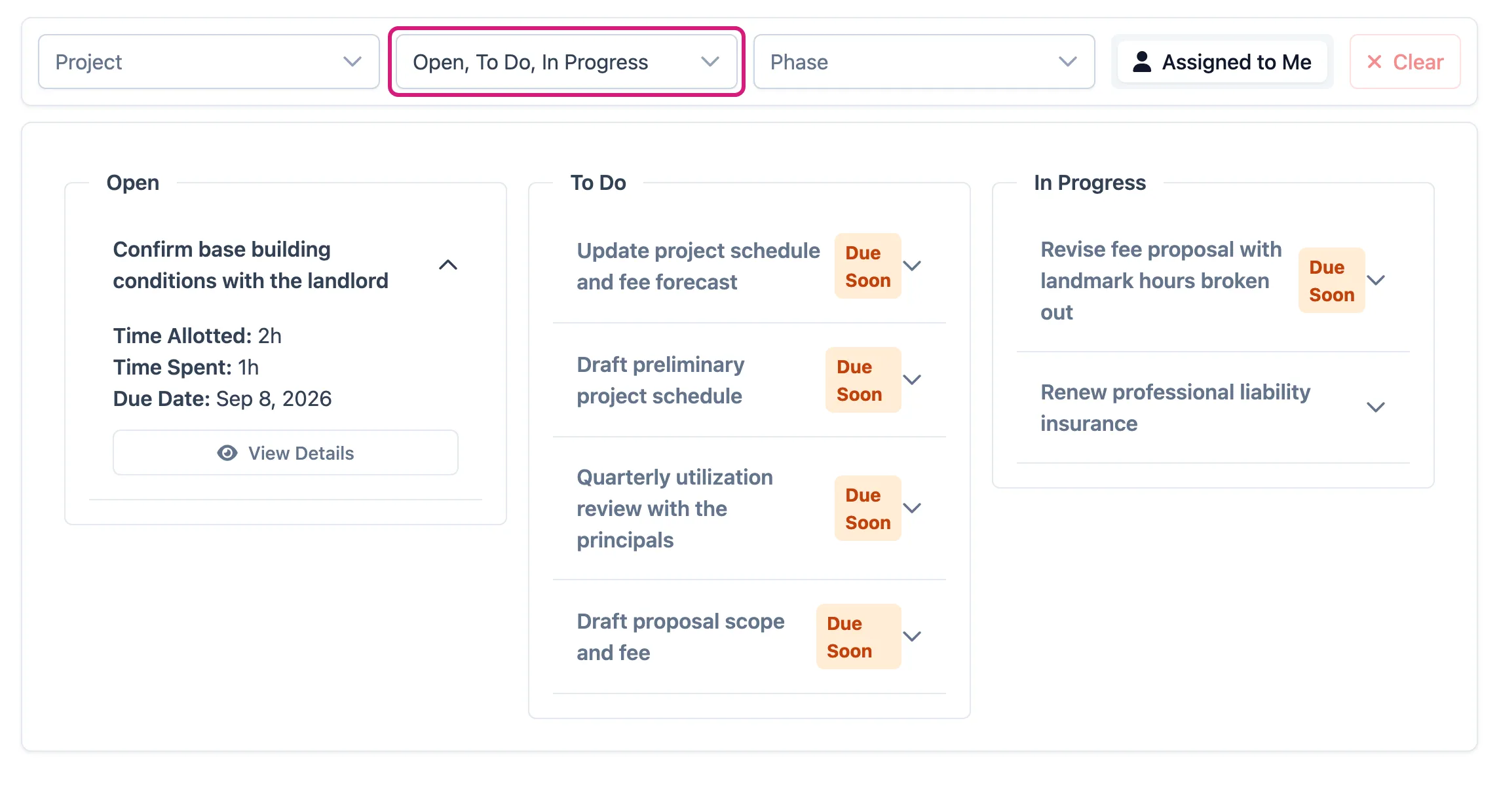
To see the rest, add them to the Status filter:
- Completed — finished tasks
- On Hold — temporarily paused
- Cancelled — tasks that won’t be completed
Narrowing what’s on the board
Section titled “Narrowing what’s on the board”Use the filter bar above the columns:
- Project — start typing a project name and pick it from the list. Pick more than one if you like.
- Status — tick the statuses you want. This is also what decides the columns.
- Phase — limit the board to particular project phases.
- Assigned to Me / All Tasks — click the toggle to switch between your own work and everyone’s. This appears only if your role lets you view all tasks.
- Clear — resets every filter.
Opening a task from the board
Section titled “Opening a task from the board”- Click a task’s row to expand it. You’ll see the time allotted, the time spent, and the due date.
- Click View Details to open the full task, where you can edit fields, log time, and add comments.
Moving a task to another status
Section titled “Moving a task to another status”You can’t drag tasks between columns. Change the status on the task itself:
- Expand the task and click View Details.
- Edit the task and set its new status.
- Save. The board shows it in the new column the next time it loads.
Adding a task from the board
Section titled “Adding a task from the board”Click Create Task at the top of the page, fill in the details, and save.