
FF&E
FF&E stands for furniture, fixtures, and equipment. It is where your firm keeps the pieces it specifies — a sofa, a chandelier, a faucet, a guestroom desk — with everything a purchase order or a schedule needs to name the right thing.
FF&E lives under Libraries in the sidebar, next to Specifications. You’ll only see it if your role allows it — see Roles & access.
What every item records
Section titled “What every item records”No matter what kind of item it is, each one has the same core information:
- Identity — name, model number, description, and one image
- Sourcing — vendor, manufacturer, a link to the product page, lead time in days, and the purchasing unit (each, pair, linear foot, and so on)
- Pricing — cost and sell price
- Dimensions and materials — width, depth, height (inches), weight (pounds), the item’s one dominant material, and its finish
Until you upload an image, the item shows a stand-in illustration in its place — on the item’s own page, in the browse lists, and wherever the item is scheduled in a project’s rooms.
Notes and files
Section titled “Notes and files”Every item’s page has a Notes tab with a full editor — formatting, lists, links — for anything that does not fit a field: an install quirk, a conversation with the vendor, a reason the piece was chosen. Notes save on their own, so you never have to open the edit form for them. If your access to FF&E is view-only, the tab opens as plain reading — the formatting tools and the save button are not shown.
The Files tab holds everything else the item comes with: tear sheets, spec PDFs, shop drawings, extra photos. Upload as many as you like, rename them, and group them under a category of your choosing. The item’s own image is not listed here — it belongs to the item itself, and you change it from the edit form, where swapping it in also clears out the one it replaced.
The Gallery tab is for photos of the item — finishes, installed shots, showroom pictures. It takes images only, several at a time, and arranges them four across grouped by the month they were added. See Files & Attachments.
Categories, and the fields they bring
Section titled “Categories, and the fields they bring”Every item belongs to a category, sitting under a broad parent category such as Seating or Lighting — Sofa under Seating, Chandelier under Lighting.
The category does more than group the item. Each one comes with its own set of extra fields, built into the product and ready to use:
- A Sofa asks for cover material, cover source, yardage, cushion fill, double rubs, flammability standard, seat count, and more
- A Chandelier asks for overall drop, canopy diameter, socket count, lumens, and color temperature
- A Mattress asks for mattress type, firmness, and profile height
These fields are the same in every firm’s account, which is what makes it possible to compare and report across them. They can’t be added to, renamed, reordered, or removed — there is nothing to set up before you start entering items. Most fields carry a short explanation on an info icon beside the label, so terms like double rubs or CRI don’t have to be looked up elsewhere.
The list shows only a picture and a name. Everything else is on the item’s page: the core information at the top, then tabs for Extra Details (the category’s own fields), Notes, Files, and Gallery.
Changing an item’s category
Section titled “Changing an item’s category”If you picked the wrong category, or an item is better described as something else, you can change it. Every value the new category also asks for moves across with the item — switching a Sofa to a Sectional keeps the cover material, cushion fill, and the rest of the shared upholstery information.
Anything the new category has no field for cannot come along. When that happens you are shown exactly which values would be cleared and asked to confirm before the change is made.
Browsing the catalog
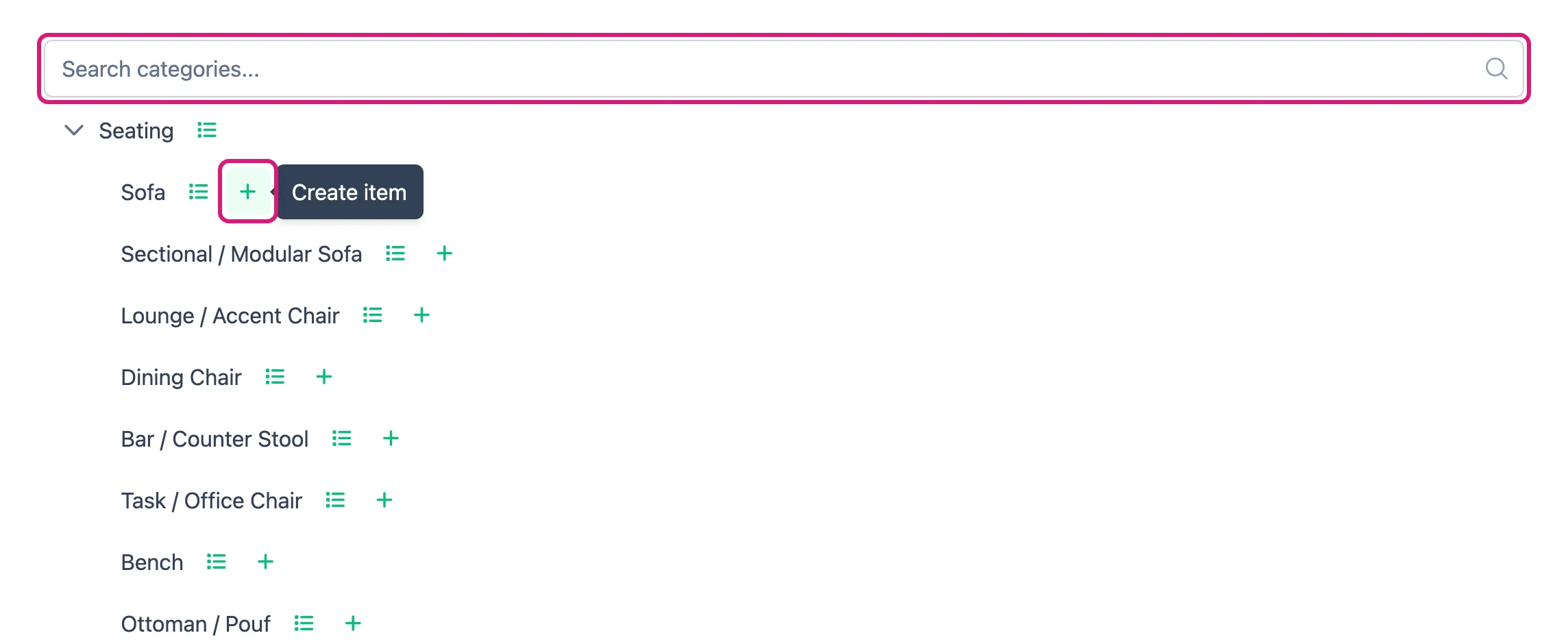
Section titled “Browsing the catalog”Opening FF&E shows the category tree rather than a list of everything you own. Expand a parent category to see the categories beneath it, or type in the search box at the top to find one by name.
Click a name to see its items as cards with a picture and a name. Both levels work: clicking Tables shows every table you own, clicking Dining Table narrows it to that category. A Create item button sits beside each category, for a new item already filed under it.
From a category’s list, the trail at the top — Tables › Dining Table — takes you back up: click Tables to widen out to every table again.
Because FF&E is a visual catalog, cards are the whole list: pick out the piece you recognize and open it for everything else.
Searching, pricing, and sorting
Section titled “Searching, pricing, and sorting”A bar above the cards helps you narrow things down:
- Search finds items by name, model number, manufacturer, finish, or vendor, once you’ve entered at least two letters. Click the × to clear it.
- Min price and Max price show only items whose sell price falls in that range. The list updates when you leave the box or press Enter. Items without a sell price are hidden while a range is set.
- Sort by orders the cards by name, cost, sell price, lead time, or date added. The arrow button beside it switches between ascending and descending.
Everything you pick is saved in the web address, so a link you bookmark or send opens on the same view.
Using an item on a project
Section titled “Using an item on a project”An FF&E item is specified into a project through a room’s FF&E schedule — see Build a project FF&E schedule. The schedule records which items go in which room and how many; pricing stays here in the catalog.
Every item’s page has a Projects tab answering the other direction of that question: where is this piece already used? It lists every project that schedules the item in one of its rooms, with the project’s type, status, address, and owner. Click the arrow at the end of a project’s row to open it; its Rooms tab shows the rooms and quantities.
The tab only lists projects you are allowed to see: everything, if your role lets you view all projects, otherwise only the projects you are on the team for. If your role does not let you view projects at all, the tab is not shown.
An item scheduled in any project cannot be deleted — the delete is refused and the message names the projects using it. Remove it from those rooms first, or leave it in the catalog for the projects that already specify it.