
Reports
Note: The exact set of reports available to your firm may vary. Your firm’s administrator can configure which reports are available and these may grow over time.
Reports give you a read-only view of how your firm is performing. They’re organized by category and cover everything from project health to team utilization.
How reports work
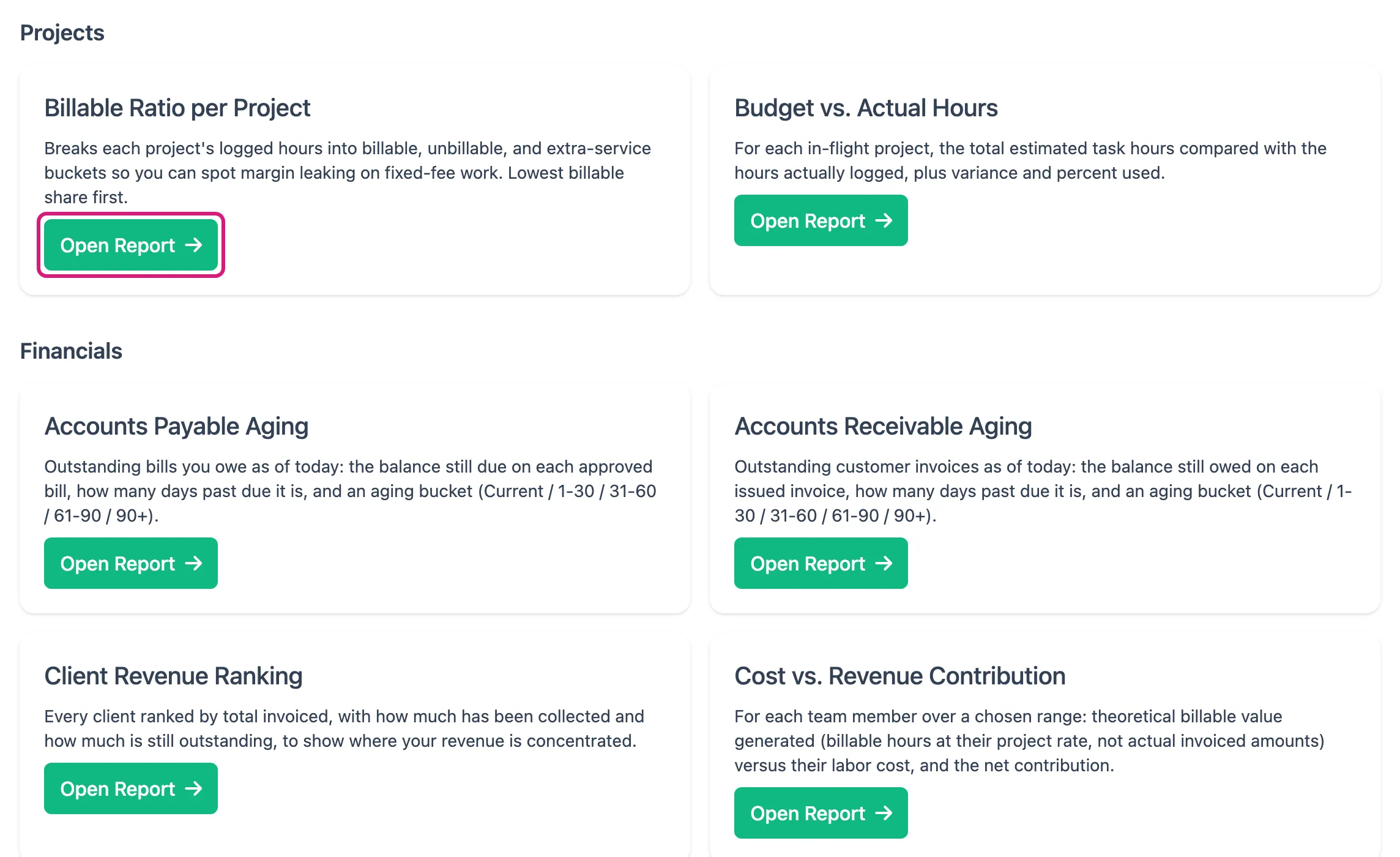
Section titled “How reports work”Reports are read-only — you view the data but don’t edit it here. The Reports area lists every report, grouped by category, with its name and a short description. A search box across the top narrows the list as you type, once you’ve entered at least two letters, matching on both the name and the description, so a word like “margin” finds a report even when its name doesn’t contain it. Click Open on the one you want, fill in the inputs it asks for (all of them are required; hover the info icon beside an input to see exactly what it filters), and click Run. A table of results appears that you can sort and export.
See Run and export a report for step-by-step instructions.
Every report has its own web address that names it, like /dashboard/reports/accounts_receivable_aging. Bookmark it or send it to a colleague and it opens the same report for them — subject to their own permissions.
Report categories
Section titled “Report categories”Projects
Section titled “Projects”Reports that track project status and progress.
| Report | What it tells you |
|---|---|
| Budget vs. Actual Hours | Compares planned hours to hours actually logged on each project |
| Phase Schedule Slippage | Identifies phases that are running behind their planned dates |
Financials
Section titled “Financials”Reports on the financial health of your projects and proposals.
| Report | What it tells you |
|---|---|
| Project Profitability | True margin per project: what you’ve invoiced (less credits) against labor cost at each person’s pay rate and sub-consultant/vendor bill cost (less vendor credits), with the contracted fee and what’s been collected alongside |
| Project Billing Summary | Per project: contracted fee, invoiced, credits, collected, outstanding, and the percent billed and collected |
| Work-in-Progress (Unbilled) | Projects where the work done is worth more than what you’ve invoiced — billable work you haven’t billed yet. A billing-error credit puts its amount back as unbilled |
| Revenue & Collections by Month | Amount invoiced (less credits) versus amount collected (less refunds) for each month in a range |
| Client Revenue Ranking | Each client by total invoiced (less credits), collected (less refunds), and still outstanding |
| Sub-consultant & Vendor Spend | Each payee by total billed (less their credits), paid, and outstanding. Two payees with the same name are listed separately |
| Accounts Receivable Aging | Outstanding client invoices after payments and credits, with days past due and an aging bucket. Unused credit shows as a negative row |
| Accounts Payable Aging | Bills you owe after payments and credits, with days past due and an aging bucket. Unused vendor credit shows as a negative row |
| Payments Received | Every client payment received in a date range |
| Payments Made | Every bill payment your firm made in a date range |
| Billable Ratio per Project | How much of the last 90 days’ task time is billable |
| Cost vs. Revenue Contribution | Each team member’s theoretical billable value versus their labor cost |
| Backlog by Project | Contracted fee not yet invoiced on each project still in flight. A billing-error credit puts its amount back to be billed |
| Proposal Pipeline | Value and status of proposals currently in progress |
Reports on staff activity, utilization, and capacity.
| Report | What it tells you |
|---|---|
| Team Roster & Tenure | A current list of team members with their start dates and tenure |
| Employee Utilization | How much of each person’s time is being used on projects |
| Workload & Capacity | Whether team members are over- or under-allocated |
| Manager Team Rollup | A summary of each manager’s team members and their activity |
Schedule
Section titled “Schedule”Reports on timing and deadlines.
| Report | What it tells you |
|---|---|
| Phase Schedule Slippage | Phases running behind schedule |
Reports that flag potential problems.
| Report | What it tells you |
|---|---|
| Overdue & Unassigned Tasks | Tasks past their due date or with nobody assigned |
| Stalled / At-Risk Projects | Projects in a stalled or at-risk state |
| Stale Draft Invoices | Invoices left in draft too long — billable work that hasn’t been sent to the client |
| Phase Fee Distribution Check | Flags phases where the fee allocation looks unusual |
Exporting
Section titled “Exporting”Every report can be exported. Once it has run, an Export CSV button appears at the top right of the results table and downloads the rows as a CSV file named after the report — ready to open in a spreadsheet.