
Add Multiple Tasks at Once
If you need to create several tasks at the same time, the bulk add feature lets you enter them all at once.
- In the sidebar, click Tasks.
- At the top of the page, open the Create Task button’s dropdown (the small arrow beside it) and choose Create Multiple Tasks.
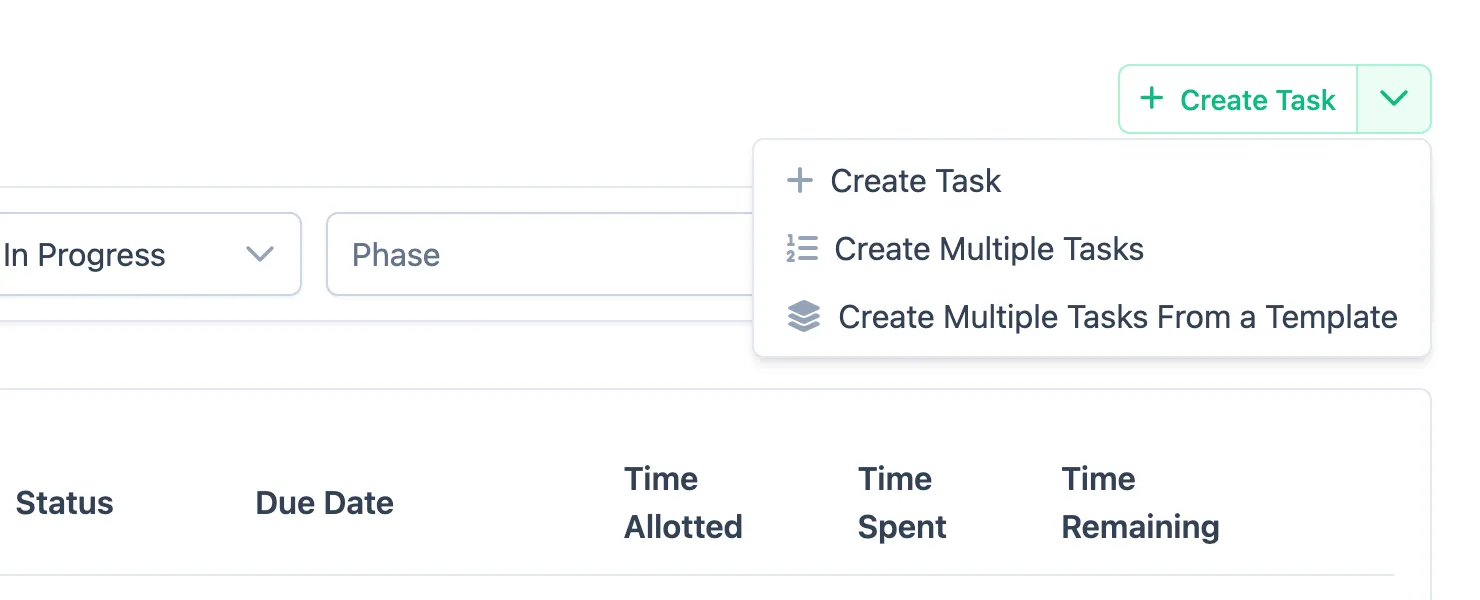
The arrow beside Create Task opens this menu. The same pattern appears on the other list pages. 3. A form appears with multiple rows — one row per task. 4. For each task, fill in:
- Name
- Project
- Phase (optional)
- Due date
- Any other fields you want to set
- Add more rows as needed.
- Click Save when all tasks are entered.
All tasks are created at once with Open status. Unlike the single Create Task form, bulk-added tasks are not assigned to anyone — open a task and use its Assigned to field to assign it.
Start from a task-group template
Section titled “Start from a task-group template”If you regularly create the same set of tasks together — for example, all the tasks needed to kick off the first phase of an ADU — you can start from a template instead of typing each row.
- In the sidebar, click Tasks.
- Open the Create Task button’s dropdown and choose Create Multiple Tasks From a Template.
- Pick a template from the list. You can search by name.
- The multiple-task form opens already filled in with all of the template’s tasks.
- Choose the Project and Phase the tasks belong to (use the default row to apply one project/phase to every task at once), adjust any rows you like, then click Save.
A template only provides the task names, descriptions, time allotted, and fee type — you always pick which project and phase the tasks go on when you add them, so the same template works for any project.
After bulk adding
Section titled “After bulk adding”Each task is a full task record. Open any of them to:
- Set dependencies
- Add a description
- Log time through activities
- Add comments or to-dos