
Log Time with Activities
Time is tracked in AECPulse through time logs — entries that record who worked, for how long, and against what. You can log time against either:
- a task assigned to you, or
- nothing in particular — a standalone entry, when the work isn’t tied to a specific task.
The total of all time logged on a task becomes the time spent on that task.
Logging time from a task
Section titled “Logging time from a task”- Open the task you worked on.
- Click the Activity tab.
- Click Log Time.
- Fill in:
- Date — the day the work was done
- Start Time and End Time — when you started and stopped. AECPulse works out the Duration for you and shows it under the times.
- Description — optional notes about the work done
- Click Log Time.
The entry is added to the list and the task’s time spent total updates automatically.
Logging time from the calendar
Section titled “Logging time from the calendar”- Open the Calendar.
- Click Create (or click a time slot) and choose Log Time.
- In the Task picker, either:
- choose one of your assigned tasks, or
- leave it blank — the box reads Select a task (optional) — to record standalone time that isn’t tied to a task.
- Fill in the date, start and end times, and an optional description, then click Log Time.
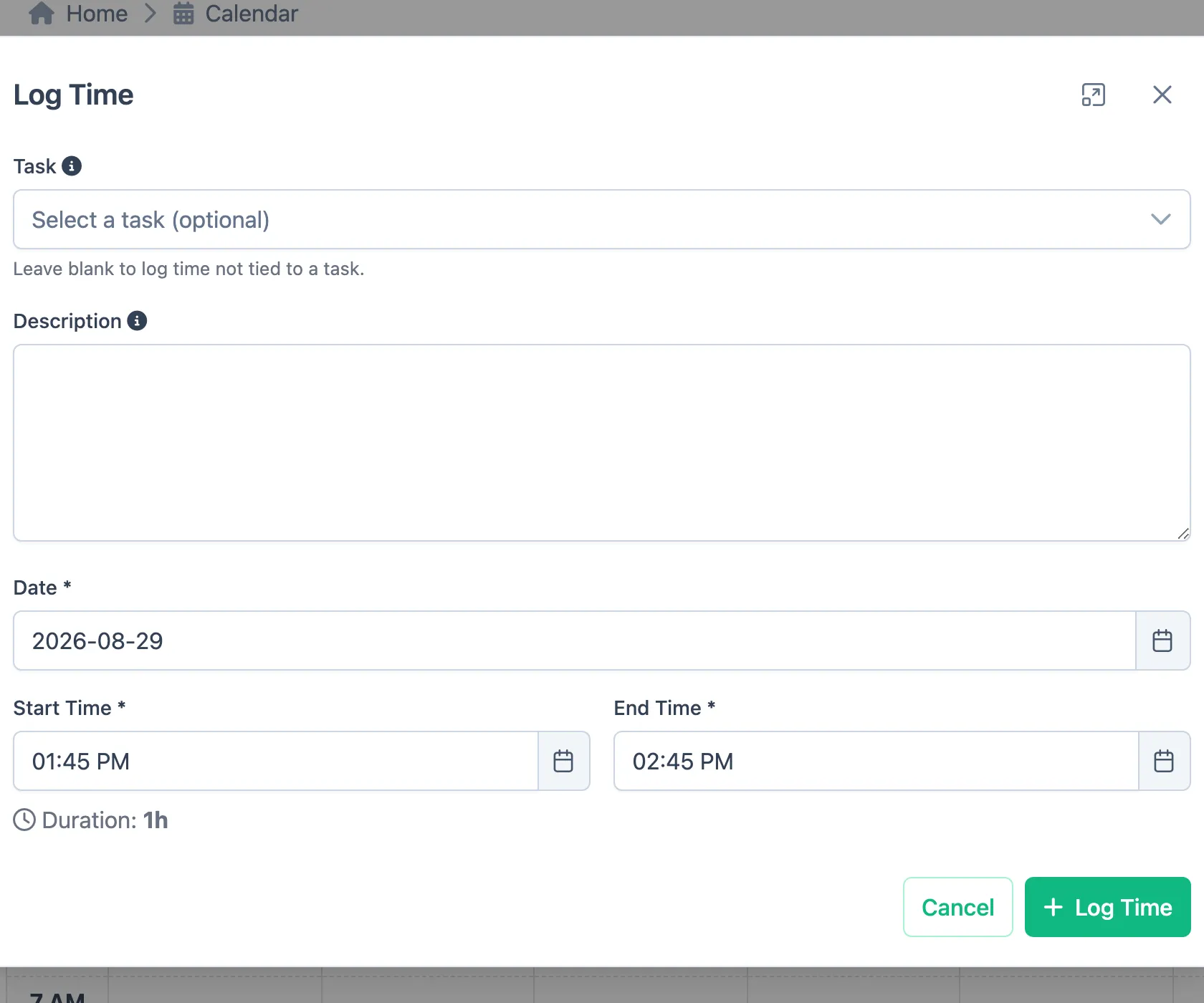
Only tasks assigned to you that aren’t completed or cancelled appear in the picker. They are grouped under the project each task belongs to, and tasks that aren’t part of a project are listed under Standalone Tasks. Type in the picker’s search box to find a task by its own name or by its project’s name.
Creating a task on the fly
Section titled “Creating a task on the fly”If the task you need doesn’t exist yet, click Create New Task in the task picker to add one without leaving the Log Time window. The new task is selected automatically so you can log against it right away. (This button appears only if you have permission to manage tasks.)
Editing a time log
Section titled “Editing a time log”- Open the task and click the Activity tab, or click the entry on the Calendar.
- On the task’s Activity tab, click the pencil icon next to the entry you logged.
- Change the task, date, start and end times, or description, then click Save.
You can move an entry to a different task, or clear the task to make it standalone. The task it’s currently logged on is always offered in the picker, even if that task has since been completed.
You can only edit time you logged yourself, and billed time can’t be edited until it’s taken off the invoice.
Viewing a time log
Section titled “Viewing a time log”Entries you can’t change — time someone else logged, or time that’s been billed — show an eye icon on the task’s Activity tab instead of the pencil and delete icons. Click it to see the task, who logged the time, when and for how long, the invoice it’s on, and the description. Clicking billed time on the calendar opens the same summary.
Deleting a time log
Section titled “Deleting a time log”- Open the task and click the Activity tab (or find the entry where it was logged).
- Find the entry you logged.
- Click the delete option and confirm.
You can only delete time you logged yourself.
Standalone time on your timesheet
Section titled “Standalone time on your timesheet”Standalone time — and time on tasks that aren’t attached to an active project — still counts on your weekly timesheet, grouped together under a General / Non-project row so none of your logged hours go missing.
Why logging time matters
Section titled “Why logging time matters”Accurate time logs feed into reports like Employee Utilization and Budget vs. Actual Hours, and into project timesheets, so your firm can see how time is being spent across projects.