Add details to a project
Before you start: you need project management access to add and edit a project’s details, and Details access to open the library picker. See Roles & access.
A detail is drawn once and kept in the Details library. Putting it on a project does not copy it — the project points at the library detail and gives it the number it carries on that project’s drawings.
Add a detail to the project
Section titled “Add a detail to the project”- Open the project and go to the Details tab.
- Click Add Detail.
- Pick a Category. The dropdown lists the same fourteen categories you see when browsing the library.
- The details in that category appear as cards showing the drawing, the name, the architectural style, and whether it is interior or exterior. Type in Search to narrow them down by name.
- Click a card to pick it. The chosen detail is outlined.
- Enter the Detail Number — what this detail is called on this project’s sheets, such as A5.01/3.
- Add Notes if this project needs them — a condition it applies to, a coordination note.
- Click Save.
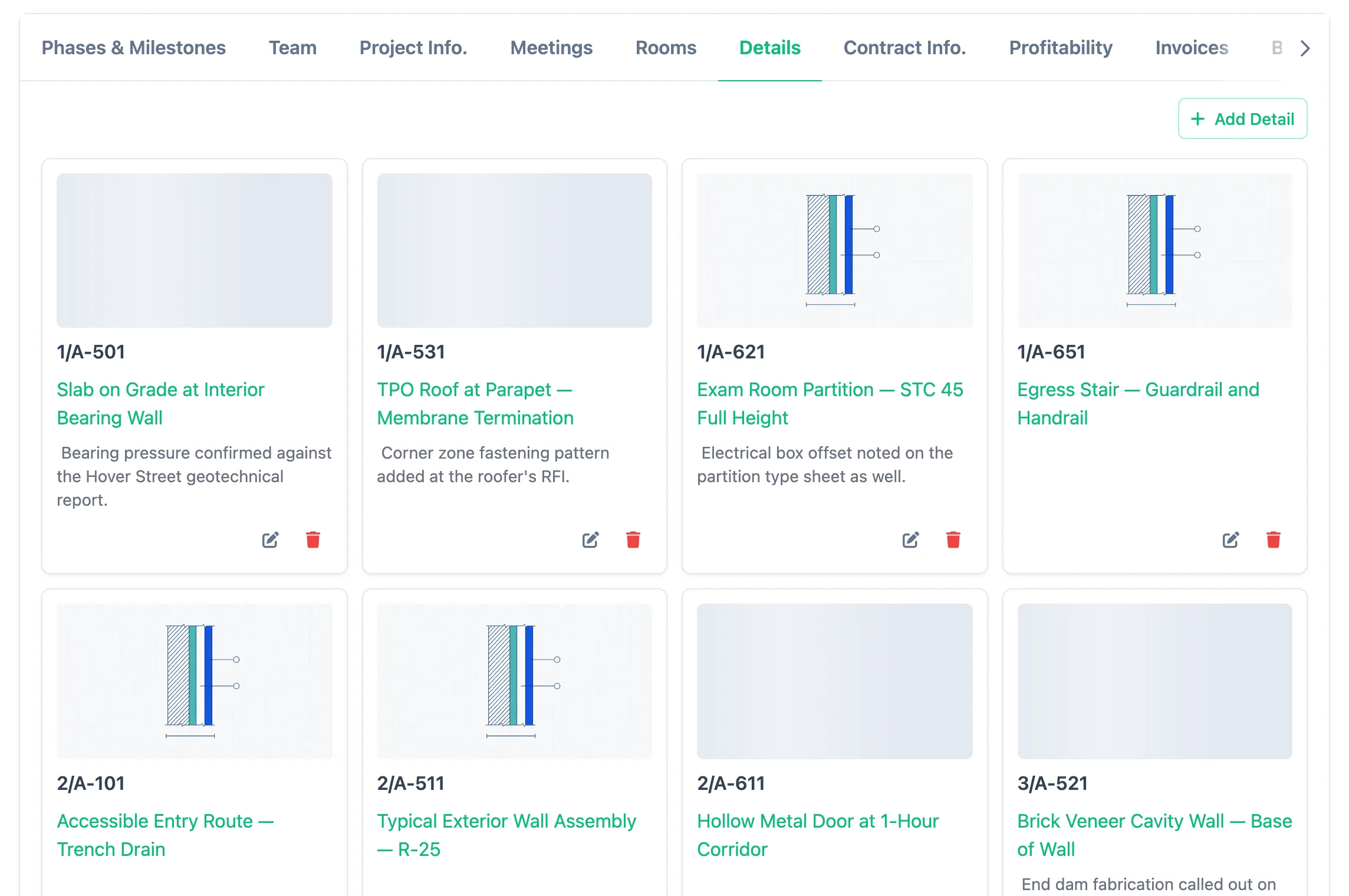
The detail appears on the tab as a card with its drawing, its number, its name, and any notes. Cards are ordered by detail number and fill the row left to right.
Detail numbers are unique per project
Section titled “Detail numbers are unique per project”Two details on the same project cannot share a number. If you enter one that is already taken, the save is refused and the message tells you which number is in use — pick another, or change the number on the detail that already has it.
The same number can be used freely on a different project. Numbering starts fresh for every drawing set.
The same detail cannot be added twice
Section titled “The same detail cannot be added twice”A detail can appear on a project once. If you try to add one that is already on the project, the save is refused and the message names it. If it genuinely needs two numbers on this set, they are two details in the library.
Editing and removing
Section titled “Editing and removing”Use the pencil icon on a card to change it. The same category picker and card grid open with the current detail already selected, so you can swap in a different detail as well as change the number or notes.
The trash icon takes the detail off the project. It does not touch the library.
Details that are in use
Section titled “Details that are in use”A detail used on any project cannot be deleted from the library. The delete is refused and the message names the projects using it.
Take it off those projects first if it really has to go; otherwise set it to Archived, which keeps it for the projects that already reference it while marking it out of use for new work.