
Create and Send an Invoice
This guide walks through billing a client for project work, from a draft invoice to recording the payments.
Before you start: Invoices require financial access. If you can’t see the Invoices area under Finance in the sidebar, your role doesn’t include this permission. See Roles and access.
Create the invoice
Section titled “Create the invoice”- In the sidebar, open Invoices under Finance, then click New (or open a project’s Invoices tab and create one from there).
- Choose the project and the client to bill.
- Enter an invoice number, the invoice date, and, if you use them, a due date.
Add line items
Section titled “Add line items”- Add a line item for each thing you’re billing.
- For each line, enter a description, a quantity, and a rate — the line total is calculated for you.
- Add per-line tax if it applies, and pick a cost code (phase) if you track billing by phase.
- Tick Rebill on a line if it’s a pass-through expense you’re billing back to the client.
- If you’re holding money back, enter a retainage amount. The invoice shows the subtotal, retainage, tax, and total as you go.
Save and send
Section titled “Save and send”- Save the invoice — it starts as a Draft.
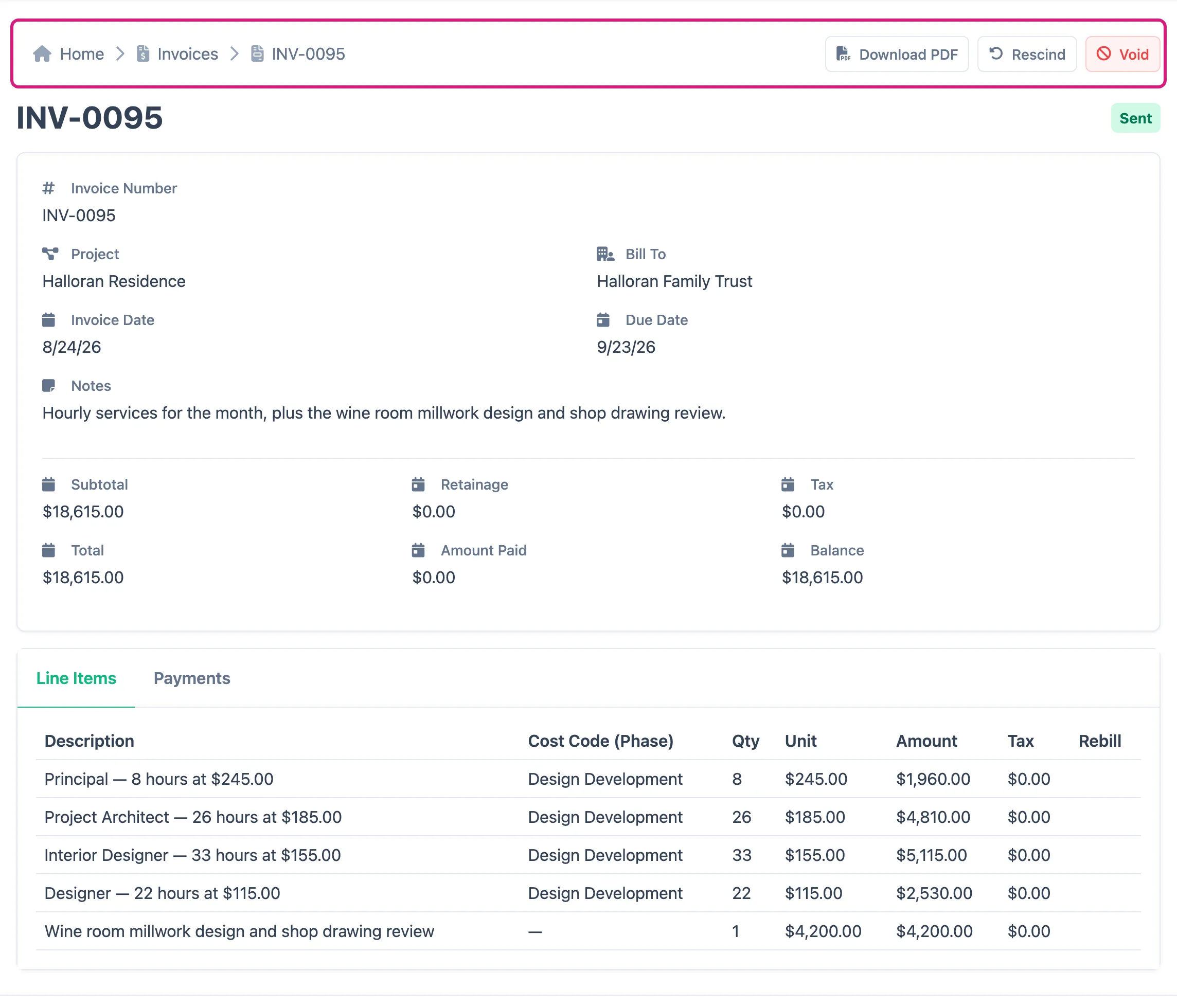
- When it’s ready, use the Sent button at the top to mark it as sent to the client.
- If you need to change a sent invoice, use Rescind to pull it back to draft, edit it, then send it again.
Download a PDF
Section titled “Download a PDF”Use the Download PDF button at the top of an invoice’s details page to generate a PDF to send to your client. It includes your firm’s name and address, the bill-to client, the invoice number and dates, the itemized charges, and a totals summary down to the balance due. You can download it at any stage, draft or sent. Your firm’s name and address come from Firm Settings.
Record payments
Section titled “Record payments”- Open the invoice, go to its Payments tab (next to Line Items), and add a payment for each amount received.
- Enter the amount, the date received, the method (check, card, wire, and so on), and an optional reference.
- The amount starts at the outstanding balance. The invoice updates the paid and outstanding totals and moves itself to Partial or Paid automatically.
If the invoice says the client has available credit, apply that credit first. See Issue and apply a credit memo.
Void an invoice
Section titled “Void an invoice”If an invoice shouldn’t have been issued and has no payments or credits against it, use the Void button to cancel it. To reduce an invoice that’s already been paid or credited, issue a credit memo instead.