
Calendar
Note: The exact types of items that appear on the calendar (tasks, meetings, due dates) are based on what your firm has set up. You may see some or all of the item types described here.
The Calendar gives you a date-based view of your work. Instead of browsing a list, you see what’s happening on which days.
What appears on the calendar
Section titled “What appears on the calendar”The calendar shows dated items from across AECPulse, including:
- Time logged against tasks and as standalone entries
- Project meetings recorded on projects
- Milestones and deliverable deadlines
The calendar opens on the Week view.
Filtering what you see
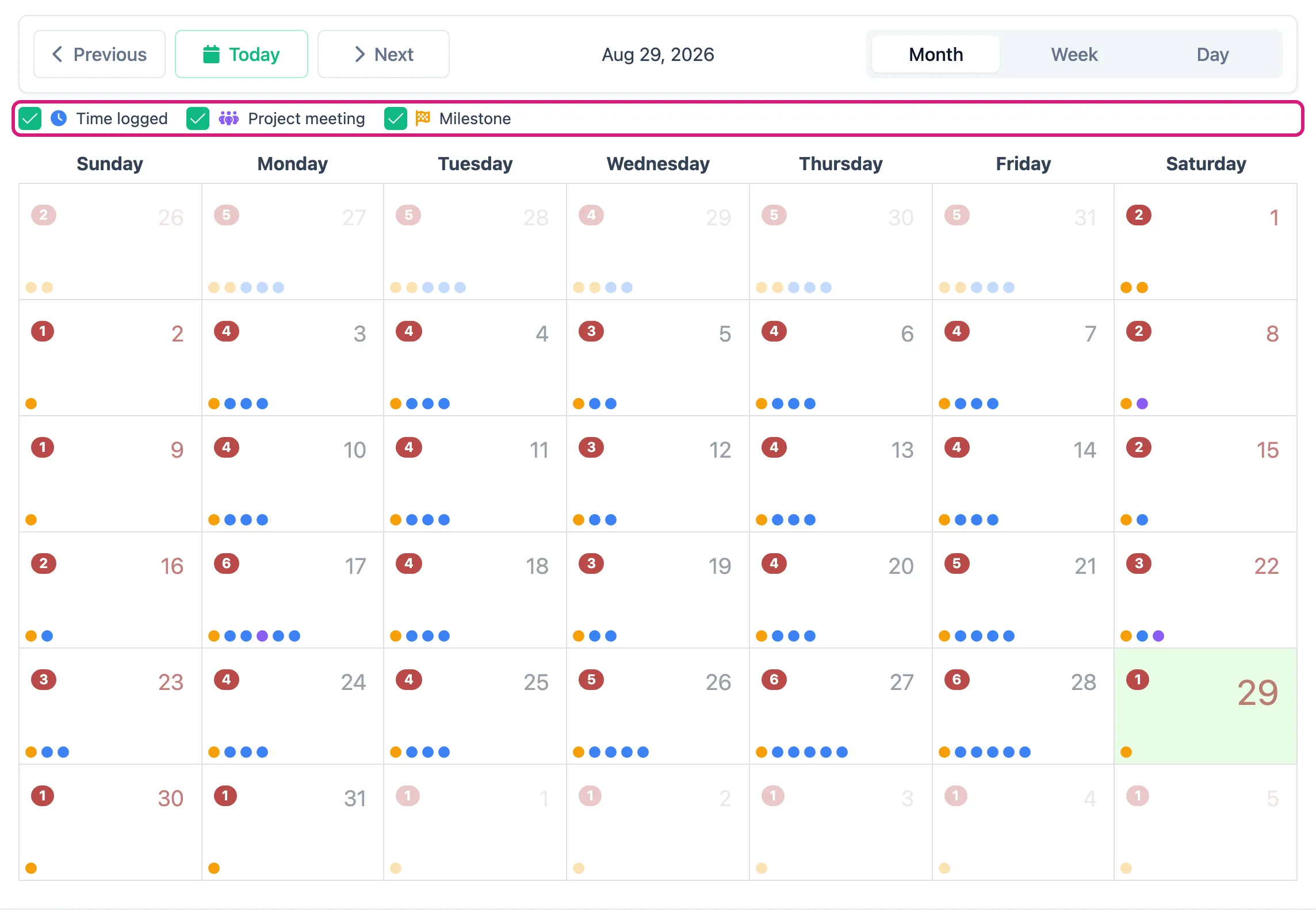
Section titled “Filtering what you see”Above the calendar is a color key listing the item types — Time logged, Project meeting, and Milestone — each with a checkbox in front of it. Uncheck a type to hide those items and reduce clutter; check it again to bring them back. You can mix and match to focus on just what matters, and your selection is remembered the next time you open the calendar.
Calendar views
Section titled “Calendar views”Switch between three views using the controls at the top of the calendar:
| View | What you see |
|---|---|
| Month | A full month grid — items appear on their dates |
| Week | A seven-day view with more detail per day |
| Day | A single day’s items in detail |
The Week and Day views show the hours from 4:00 AM to 9:00 PM in 15-minute rows. Items outside those hours appear only in the Month view.
Use the navigation arrows to move forward and backward in time.
Using the calendar
Section titled “Using the calendar”- Click a meeting or milestone to open its detail. Click logged time to see and edit it right there (billed time opens a summary you can’t change).
- Use the view buttons to zoom in or out.
- Navigate between time periods using the arrow controls.
Adding time and meetings from the calendar
Section titled “Adding time and meetings from the calendar”Click Create at the top of the page, or click a day in the Month view, to log time or add a project meeting. In the Week and Day views you can also press on a time and drag down to choose a start and end time. The form opens with that range filled in. A single click picks one hour starting at the time you clicked.
Subscribe from another calendar app
Section titled “Subscribe from another calendar app”Click Subscribe at the top of the page, next to Create, to see your AECPulse calendar in Google Calendar, Outlook or Apple Calendar. You get a private link that your calendar app checks on its own, so your time logged, project meetings and milestones show up next to your other appointments and stay up to date. The link covers the last six weeks and the next three months.
- The link is yours and stays the same every time you open Subscribe.
- It’s read-only: changes you make in the other app don’t come back to AECPulse.
- Anyone who has the link can see your calendar, so keep it private. If you think someone else has it, contact support and we’ll replace it.
- The window also shows when it was created and when your calendar app last checked it.
See Use the calendar for step-by-step instructions for each app.