
Create and Edit Roles
Before you start: Managing roles requires admin access. If you don’t see the gear icon in the top bar, your account doesn’t have this permission. See Roles and access.
Roles are named bundles of permissions. You create and manage role definitions in the Admin area. To assign a role to a specific person, see Assign roles to a team member.
Opening Roles
Section titled “Opening Roles”Click the gear icon in the top bar. The Admin area opens on its Roles tab.
You’ll see a list of all the roles your firm has defined, plus the built-in Admin role, which is marked with a System tag.
Creating a new role
Section titled “Creating a new role”- Click Create Role. A short menu appears with two ways to start:
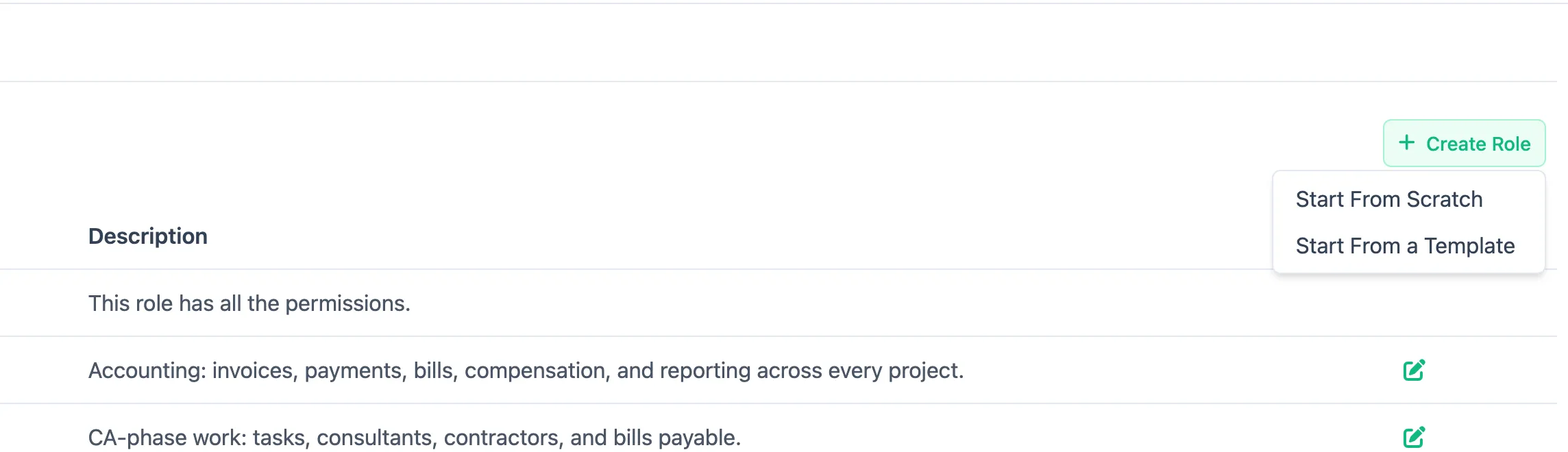
- Start From Scratch — a blank role with nothing ticked.
- Start From a Template — a ready-made role you can adjust, so you don’t have to build a common one permission by permission.
- Enter a Name for the role (for example “Project Manager”, “Finance”, “Read Only”).
- Optionally add a Description so team members know what this role is for.
- Under Permissions, tick what the role should include. The permissions are grouped in a tree — click a group to expand it and tick the individual permissions inside. Each one has a short plain-English line underneath saying exactly what it allows, so you don’t have to guess from the name.
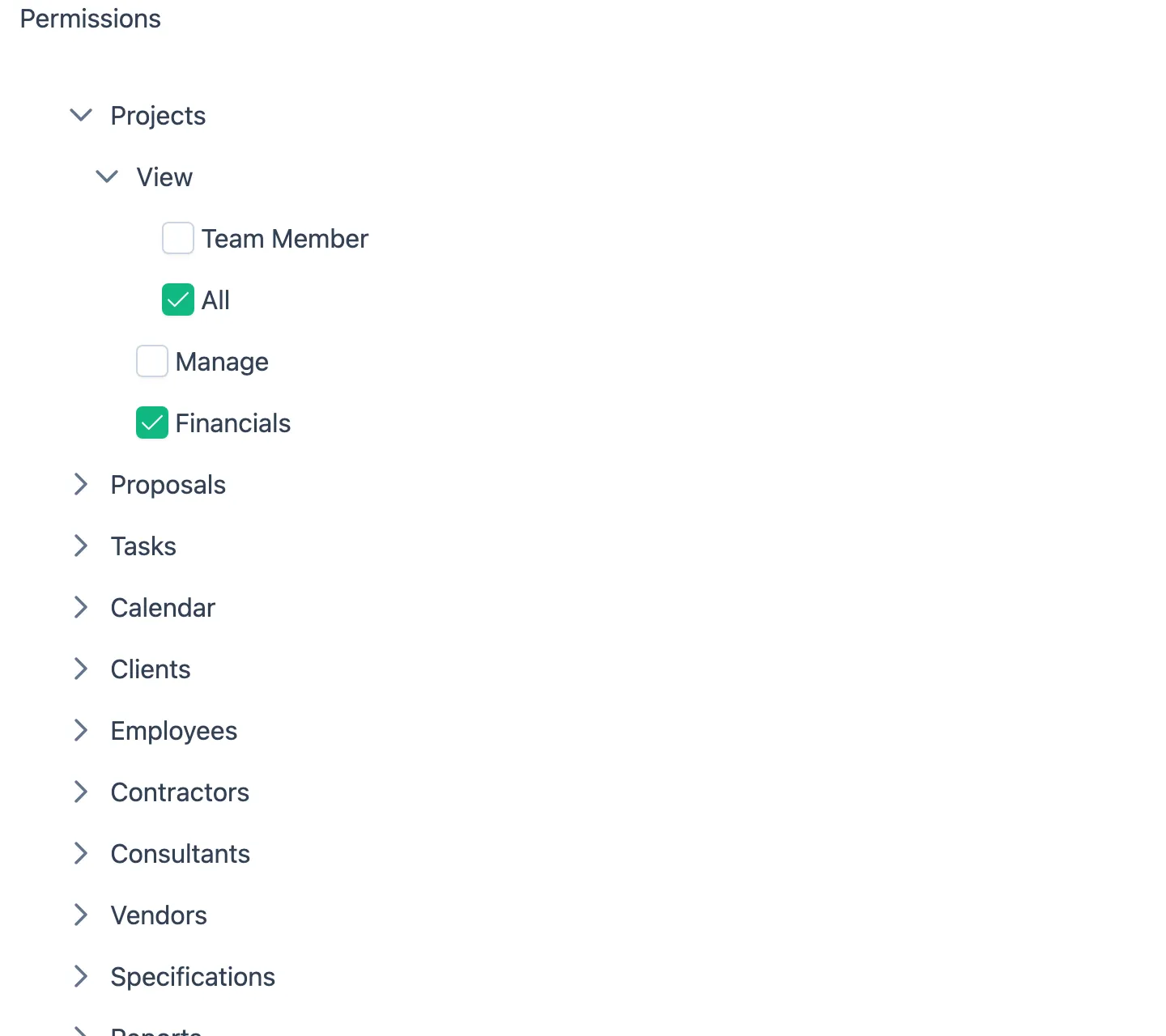
Only the individual permissions at the bottom of the tree have a checkbox — the levels above them are just headings. 5. Click Create Role at the top of the page.
The role is now available to assign to team members.
Editing a role
Section titled “Editing a role”- In the Roles list, click the pencil icon at the right of the role’s row.
- Update the name, description, or permissions.
- Click Save Role.
Changes take effect immediately for everyone who has this role.
Note: The built-in Admin role cannot be edited. Its row has no pencil icon, and going to its address directly sends you back to the list.
Deleting a role
Section titled “Deleting a role”- Open the role with its pencil icon.
- Click Delete at the top of the page.
- Confirm when prompted.
Note: The built-in Admin role cannot be deleted. Deleting a role removes it from all team members who had it assigned.
Leaving without saving
Section titled “Leaving without saving”Click Cancel at the top of the page to go back to the list without keeping your changes.