
Files & Attachments
Many areas of AECPulse let you attach files — drawings, photos, signed PDFs, reference images, and more. Files live alongside the record they belong to, so everything related to a project, task, or team member stays in one place.
Where you’ll find files
Section titled “Where you’ll find files”A Files section appears on the detail page of:
- Projects — drawings, photos, reference documents, and anything else tied to the job
- Tasks — supporting files for a specific work item
- Team Members — documents kept with a person’s record
- FF&E items — cut sheets, spec sheets, and product images
- Details — reference drawings and images for a detail
You’ll only see the option to add, rename, or delete files if your role allows it. See Roles and access.
Who can see a file
Section titled “Who can see a file”A file inherits the access rules of the record it is attached to. If you can view the record, you can open its files; if you can’t, the file stays out of reach — including by direct link. Adding, renaming, and deleting need the same manage permission that lets you edit the record itself.
This applies to every kind of attachment: a bill’s document, a team member’s paperwork, a project or task file, an FF&E or detail image. A file you have just uploaded on a form you haven’t saved yet is private to you until the record is saved.
Supported file types
Section titled “Supported file types”You can upload images (JPG, PNG, and WEBP), PDF documents, and DXF drawings from your CAD software, up to 25 MB each.
Some areas only accept a specific kind of file — for example, a section that expects a signed PDF will only let you pick PDFs and will only list PDFs. In those places, other file types are hidden so the list stays focused on what belongs there.
Categories
Section titled “Categories”Every file can be given a category — a free-text label that works like a folder. Files are grouped under their category heading, so you can keep, say, Drawings, Photos, and Permits visually separated within the same record.
- A file starts uncategorized when you first upload it. Uncategorized files are grouped under an Uncategorized heading, always shown at the bottom of the list.
- You set or change a category when you edit a file (the same place you rename it).
- Giving two files the same category name groups them together. Changing a file’s category simply moves it to a different group — nothing is moved or re-uploaded.
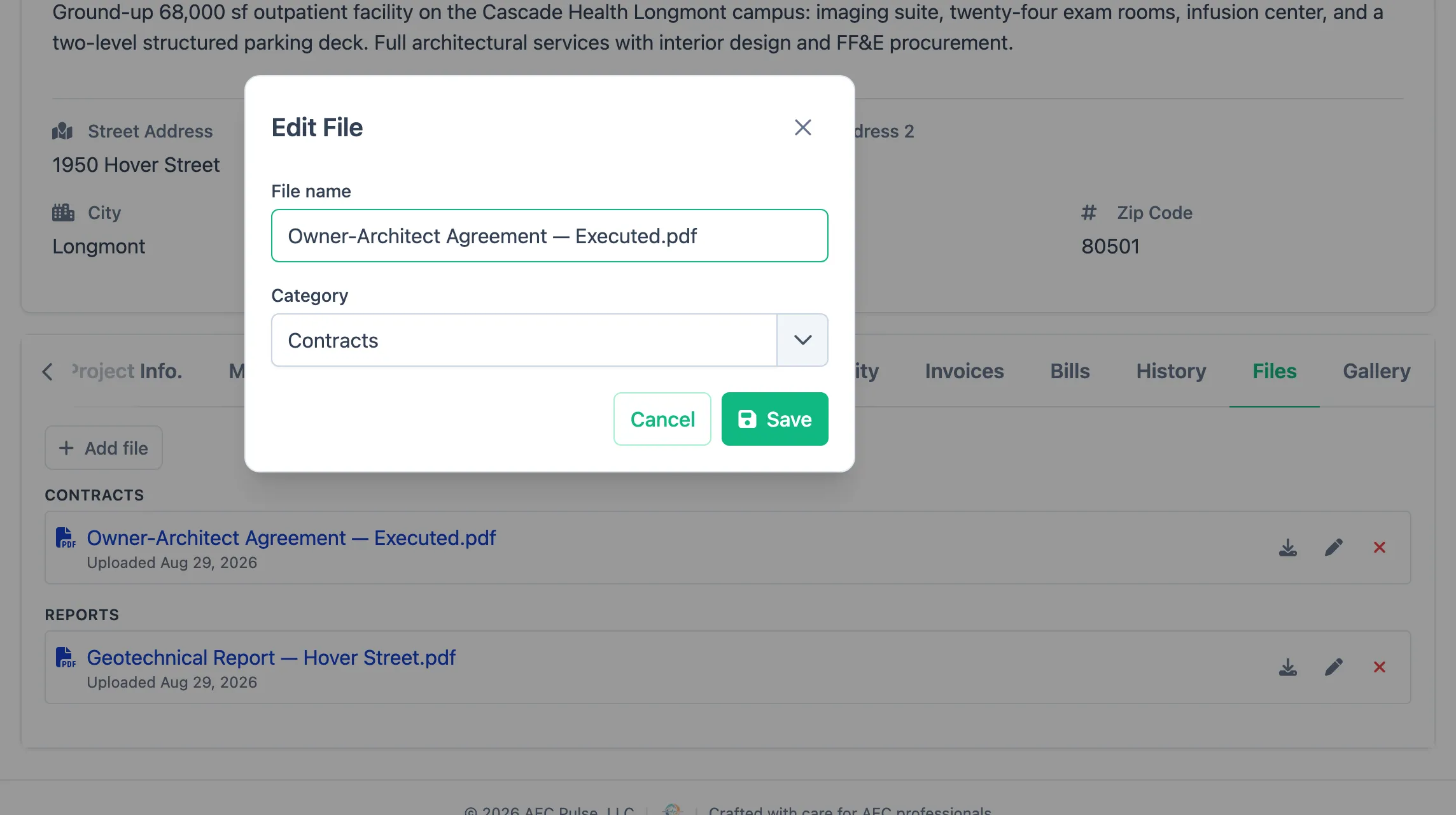
Categories are just labels for organizing your view. There’s no fixed list to set up first — type whatever name suits the record.
Opening a file
Section titled “Opening a file”Click a file’s name to preview it in a window over the page. Close the preview to return to where you were. DXF drawings can’t be previewed in the browser, so clicking one downloads it instead — open it in your CAD software.
The photo gallery
Section titled “The photo gallery”Projects and FF&E items also have a Gallery tab — a picture-first place for photos, kept separate from the Files tab.
- The gallery takes images only (JPG, PNG, WEBP), and you can add several at once.
- Photos are laid out four across on a wide screen, and grouped under the month they were added — newest month first, and the newest photo first within each month. There are no categories to fill in; the dates do the sorting for you.
- Click any photo to see it full size, then step through the rest with the arrow buttons or your keyboard’s left and right arrow keys.
The Gallery and the Files tab keep their own contents: a photo you add to the gallery does not appear under Files, and a file you attach under Files does not appear in the gallery.