
Signing In
Signing in
Section titled “Signing in”AECPulse doesn’t use passwords. Each time you sign in, it emails you a short verification code.
- Open a web browser and go to your firm’s AECPulse address. It looks like
yourfirm.aecpulse.com. - Enter your email address and click Send Code.
- Check your inbox for an email from AECPulse containing a 6-character verification code.
- Enter the code and click Login.
You’ll land on the dashboard after a successful sign-in.
Your code is valid for 30 minutes. If it expires before you use it, request a new one.
Only your most recent code works. If you request a second code, the one in the earlier email stops working — always use the newest email in your inbox.
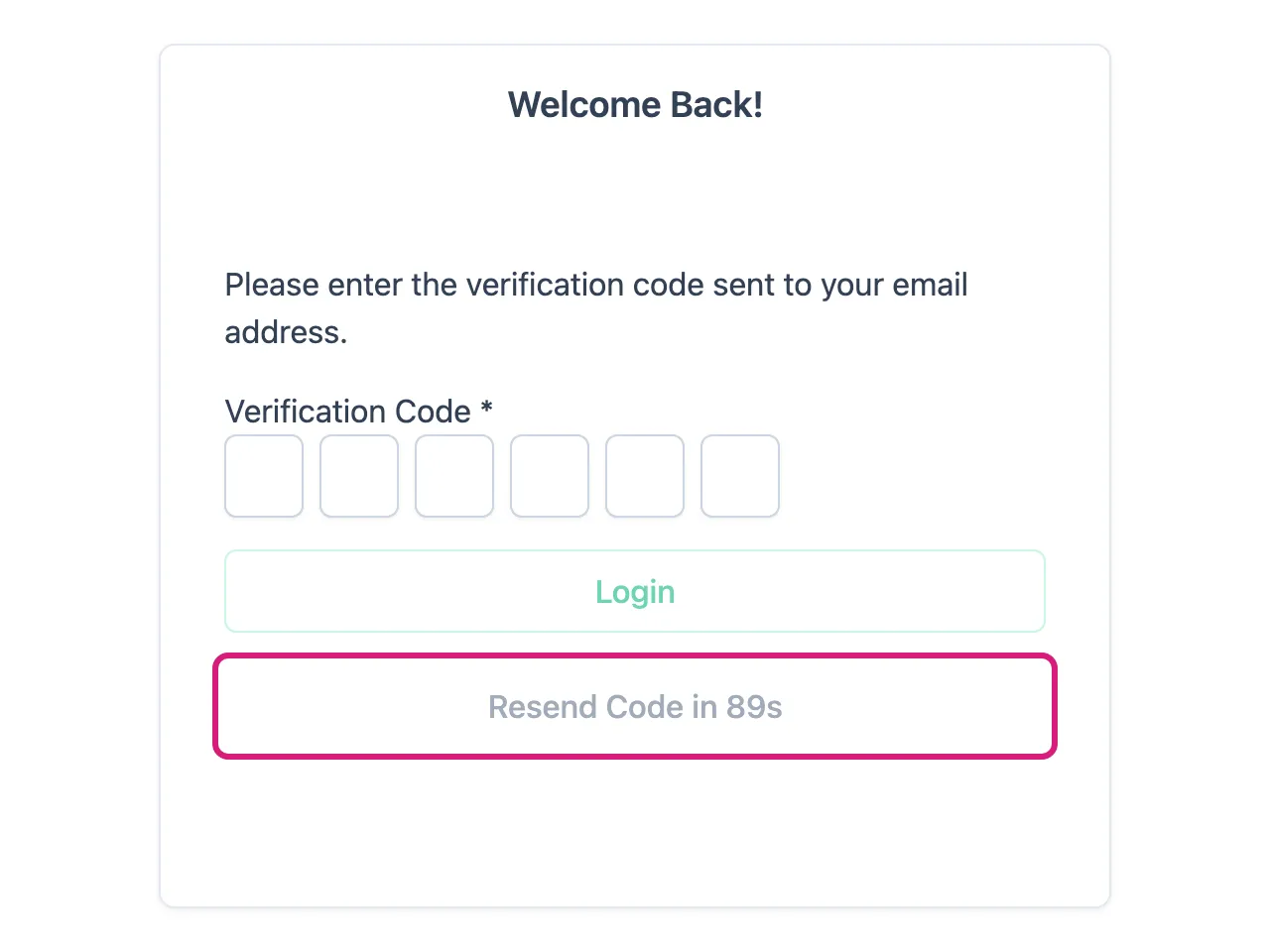
The Resend Code button counts down before it can be used again.
If your code doesn’t arrive
Section titled “If your code doesn’t arrive”Check your spam or junk folder first, then use the Resend Code button on the code-entry screen. There’s a short wait between resends, and the button counts down until it’s ready again.
If you request a great many codes in a row, AECPulse stops sending after 15 and shows a message asking you to check your email or wait a few minutes. This keeps anyone from flooding your inbox with sign-in emails. The last code you were sent still works while you wait.
Activating your account for the first time
Section titled “Activating your account for the first time”New team members receive an activation email from AECPulse when their account is created. You must activate your account before you can sign in.
- Open the activation email in your inbox — it contains a 6-character verification code.
- Go to the activation page and enter your firm’s address (the part that comes before
.aecpulse.com). - Enter the verification code from the email.
- Click Activate Account.
- You can now sign in at your firm’s address, using a fresh code sent to your email.
Note: If your activation code has expired, ask your firm administrator to resend the activation email.
Signing out
Section titled “Signing out”To sign out of AECPulse:
- Look at the top bar on any page.
- Click the red sign-out icon at the far right — an arrow leaving a box.
You’ll be returned to the sign-in page.
Troubleshooting sign-in problems
Section titled “Troubleshooting sign-in problems”If you’re having trouble signing in, see Can’t sign in.