
Kanban Board
The Kanban board gives you a column view of your tasks, organized by status. Instead of scrolling through a list, you see the work in each status side by side.
How the board is organized
Section titled “How the board is organized”The board draws one column for each status you have selected in the Status filter at the top of the page. It opens showing three columns — Open, To Do, and In Progress — because those are the statuses the filter starts with.
Add Completed, On Hold, or Cancelled to the Status filter and those columns appear too. Remove a status and its column goes away.
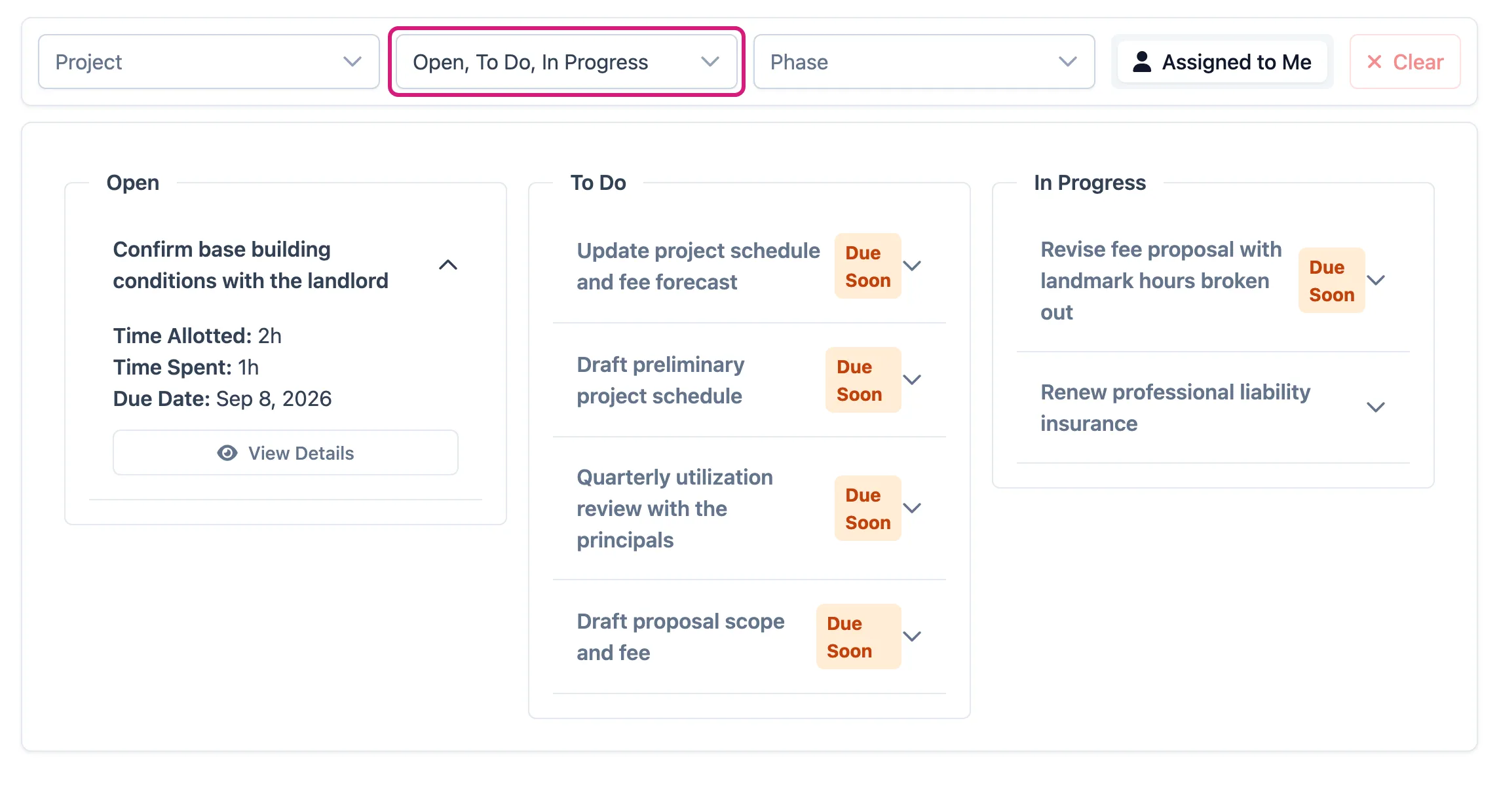
The Status filter (outlined) is what decides the columns. One task is expanded to show its details.
Filtering the board
Section titled “Filtering the board”The filter bar above the board narrows what’s on it:
- Project — show only tasks on the projects you pick (type to search).
- Status — which statuses to show; this also decides the columns.
- Phase — show only tasks in the phases you pick.
- Assigned to Me / All Tasks — a toggle between just your work and the whole firm’s. You’ll only see this if your role lets you view all tasks.
- Clear — puts every filter back to its starting point.
What’s on a card
Section titled “What’s on a card”Each task is a collapsed row in its status column, showing the task name (and, for a sub task, the name of its parent task) and a tag for its due date. Click the row to expand it and see:
- Time Allotted
- Time Spent
- Due Date
- A View Details button that opens the full task
Changing a task’s status
Section titled “Changing a task’s status”The board is for reading, not rearranging — you can’t drag a task from one column to another. To move a task along, expand it, click View Details, and change the status on the task itself. The board reflects the change the next time it loads.
Adding a task
Section titled “Adding a task”Click Create Task at the top of the page to add one without leaving the board.