
Build a project FF&E schedule
Before you start: you need project management access to add rooms and schedule lines, and FF&E access to open the item picker. See Roles & access.
The schedule is built room by room, so the rooms come first.
Add the rooms
Section titled “Add the rooms”- Open the project and go to the Rooms tab.
- Click Add Room.
- Enter the Room Name — what the room is called on drawings, such as Lobby or Guest Suite A.
- Add the Room Number, Level, and a Description if they help. All three are optional.
- Click Save.
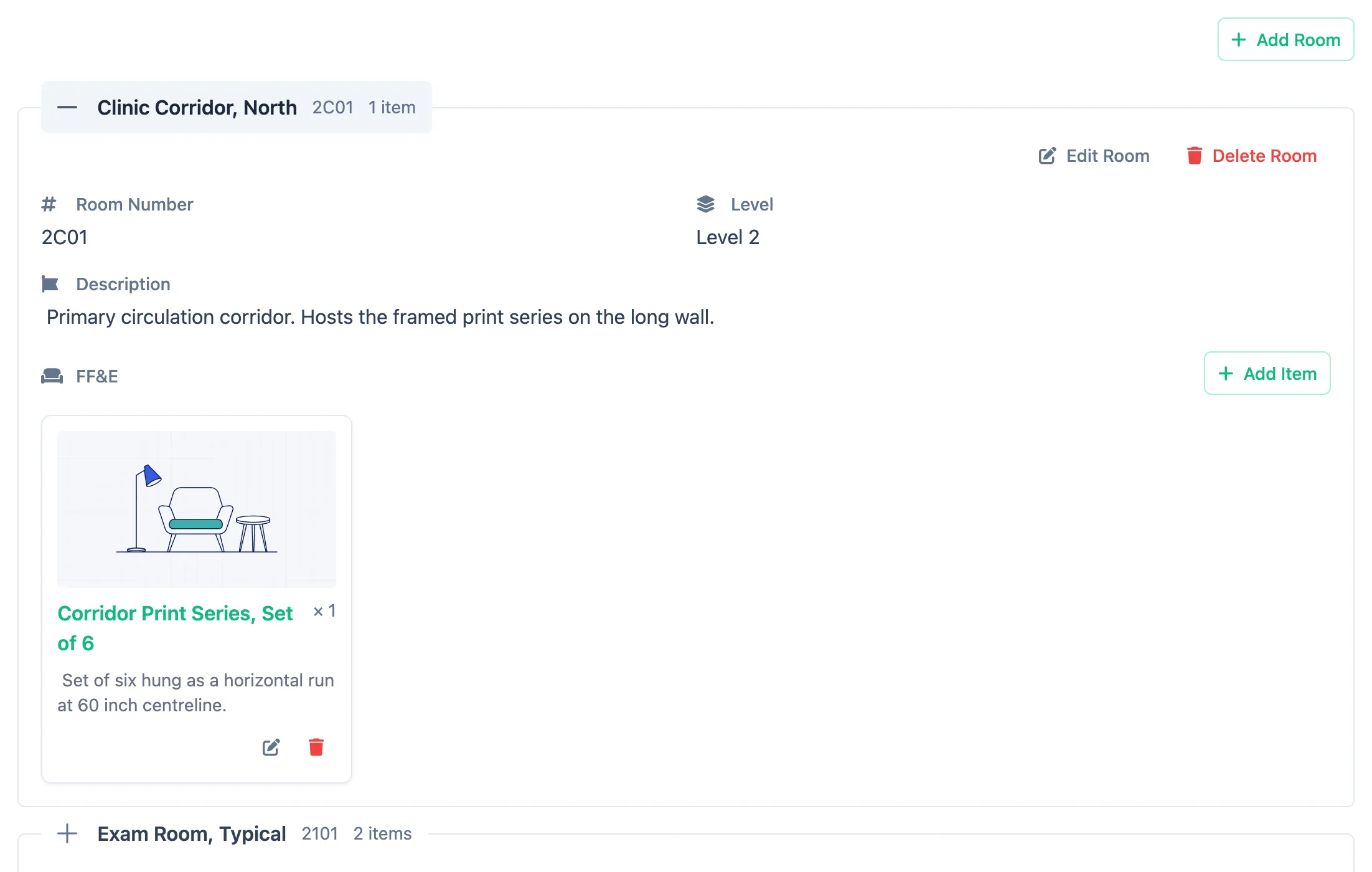
Rooms are listed alphabetically. Each one is a collapsed panel — its header carries the room name and number and the number of items scheduled into it.
Schedule an item into a room
Section titled “Schedule an item into a room”- Click a room’s header to open it.
- Click Add Item.
- Pick a Category. The dropdown lists your catalog’s categories as headings with their subcategories underneath — Sofa under Seating, Pendant under Lighting. Only a subcategory can be chosen; the headings are labels. Searching the list matches heading names too, so typing “Seating” shows every seating subcategory.
- The items in that subcategory appear as cards with their picture, name, cost and sell price. Type in Search to narrow them down by name.
- Click a card to pick it. The chosen item is outlined and named under the cards.
- Enter the Quantity for this room — a whole number of pieces.
- Add Notes if this line needs them — a finish call-out, a note about who is supplying it.
- Click Save.
The item appears in the room’s schedule as a card — its picture, name, the quantity and any notes — and the room header’s item count updates. Cards fill the row left to right and wrap onto the next row as the room fills up.
Editing and removing items
Section titled “Editing and removing items”Use the pencil icon on a card to change it. The same category picker and card grid open with the current item already selected, so you can swap in a different item as well as change the quantity or notes.
The trash icon removes an item from the room. It does not touch the catalog item.
Items that are in use
Section titled “Items that are in use”An FF&E item scheduled in any project cannot be deleted. The delete is refused and the message names the projects using it.
Remove the item from those rooms first if it really has to go; otherwise leave it in the catalog for the projects that already specify it.