
The Dashboard
When you sign in, you land on the dashboard — the home screen of AECPulse. This page gives you a quick view of what’s happening and lets you navigate to any area of the app.
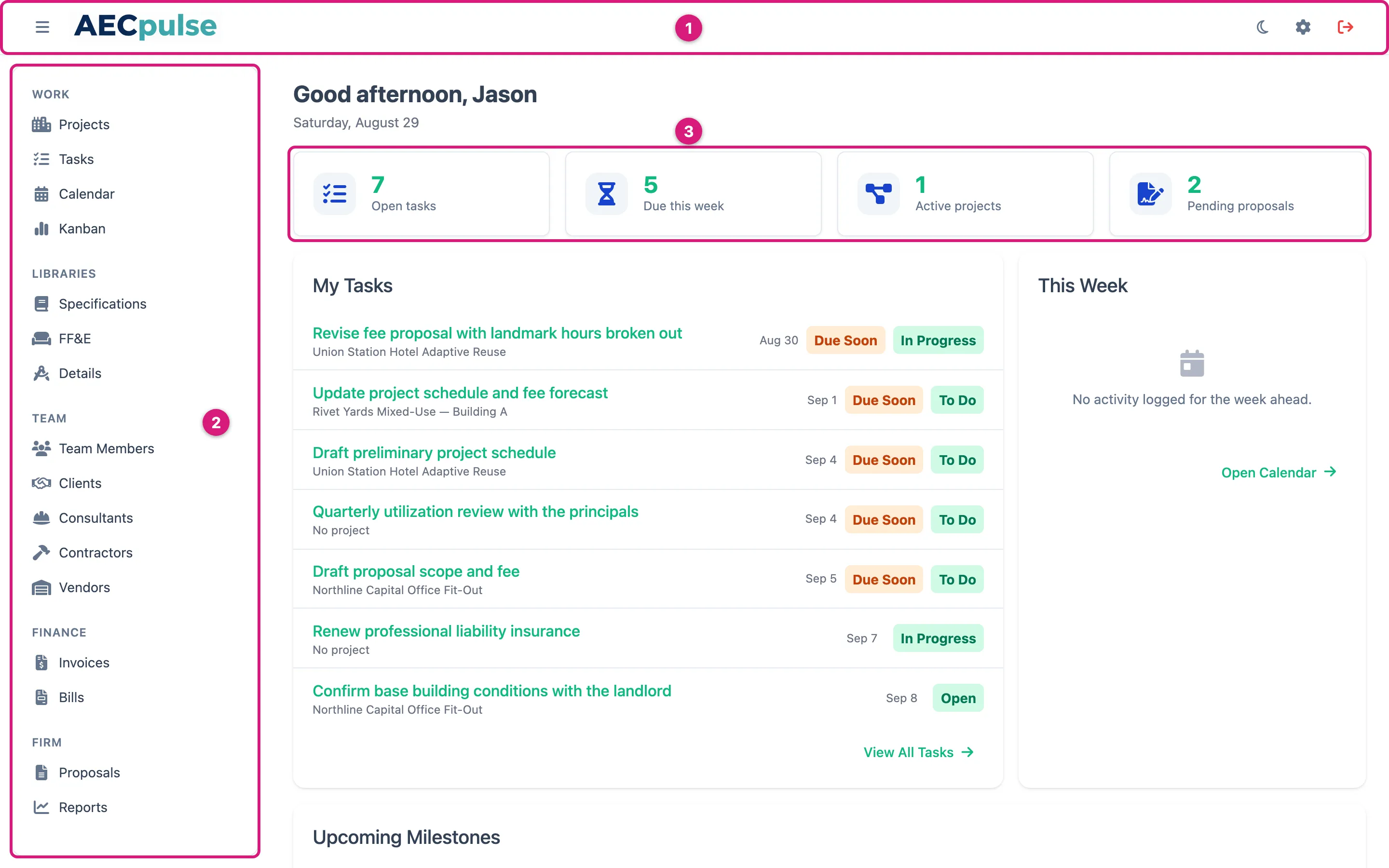
The three parts of every page: the top bar (1), the sidebar (2), and — on the home screen — the summary cards (3).
The greeting and quick stats
Section titled “The greeting and quick stats”At the top of the home screen you’ll see a greeting with your name, and four summary cards:
| Card | What it shows |
|---|---|
| Open Tasks | Tasks currently assigned to you that are not yet completed |
| Due This Week | Tasks or items with a due date in the current week |
| My Active Projects | Projects you’re on the team for that are in progress or still in draft |
| Pending Proposals | Proposals waiting for client approval |
These cards are read-only snapshots. Click through to the relevant section for the full list.
The sidebar
Section titled “The sidebar”The sidebar on the left groups all of AECPulse’s features. You’ll see menu items grouped into these sections:
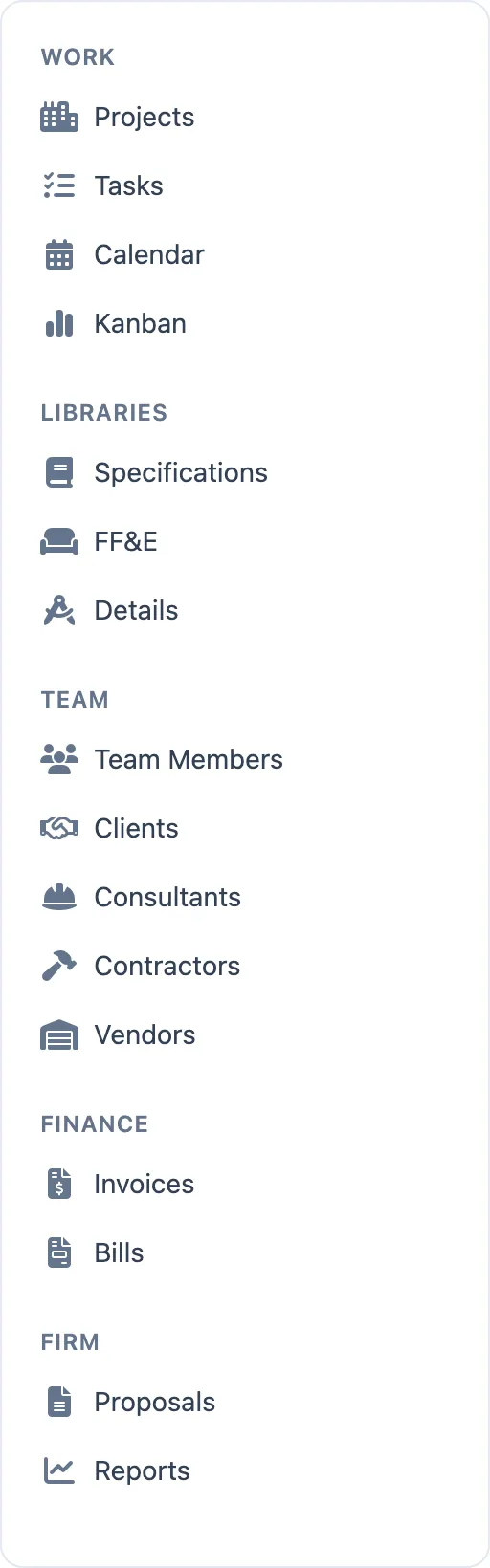
- Projects — Active and past projects
- Tasks — All tasks across projects
- Calendar — A date-based view of tasks and events
- Kanban — A board view of tasks by status
Libraries
Section titled “Libraries”- Specifications — Spec groups and spec text
- FF&E — Your catalog of furniture, fixtures, and equipment
- Details — Your library of construction details
- Team Members — Your firm’s staff
- Clients — Client companies
- Consultants — Consulting firms used on projects
- Contractors — Contractors used on projects
- Vendors — Vendors used on projects
Finance
Section titled “Finance”- Invoices — Money billed to clients
- Bills — Money owed to consultants, contractors, and vendors
- Proposals — Active and past proposals
- Reports — Firm performance reports
You’ll only see menu items your role allows. If an item is missing, your role doesn’t include access to that area. Ask your administrator if you need access. See Roles and access for more.
Collapsing the sidebar
Section titled “Collapsing the sidebar”To give yourself more screen space, click the menu button — the three stacked bars at the far left of the top bar. Click it again to bring the sidebar back.
The top bar
Section titled “The top bar”The thin bar across the very top of every page holds seven icon buttons, with no text labels. Hover over any of them to see what it does.
Beside the logo, a small tag shows your firm’s name, so you can always tell which firm you’re signed in to. If the name is too long for the space it’s shortened — hover over the tag to see all of it.

| Icon | What it does |
|---|---|
| Three stacked bars (far left) | Collapses or expands the sidebar |
| AECPulse logo | Returns you to the dashboard home from anywhere |
| Graduation cap | Opens the Walkthroughs page — guided tours that walk you around the app. See Walkthroughs. |
| Open book | Opens this help guide in a new browser tab, so the page you were working on stays where it was. |
| Moon or sun | Switches between light and dark themes — a moon in light mode, a sun in dark mode. See Switch light and dark mode. |
| Gear | Opens the Admin area, with its Roles and Settings tabs. Only visible if your role includes admin access. |
| Red arrow leaving a box (far right) | Signs you out of AECPulse |