
Projects
The Projects area is where your firm manages active and past work. Every project starts life as a proposal; once approved by a client, it becomes a project.
Project lifecycle
Section titled “Project lifecycle”A project moves through these statuses:
- Draft Project — Created from an approved proposal. Not yet active.
- Current Project — Activated; the team is working on it. (You’ll also hear this stage called “in progress”.)
- Completed — Work is finished.
- Cancelled — The project was called off (from Draft or In Progress).
Only users with the right access can move a project between statuses. See Activate and complete a project for how-to steps.
Who can see a project
Section titled “Who can see a project”Access to projects comes in two levels. With view all projects, you see every project your firm has. With team member access, you see the projects you have been added to — and only those: they are the only ones in your list, and opening another project’s link shows a not-found message rather than its details. Proposals are a separate permission of their own.
Finding a project
Section titled “Finding a project”The project list has a status bar for Draft, Current, Completed, and Cancelled projects. Beside it, the search box finds projects by name, project number, or street address as you type, once you’ve entered at least two letters; click the × to clear it. If you can see every project, the All Projects button switches to My Projects, which lists only the projects you are on the team for. The bottom of the list shows how many projects match.
Project information
Section titled “Project information”Each project has:
- Name and project number
- Project type — Residential, Commercial, Institutional, Mixed-Use, or Renovation
- Client link
- Start and end dates
- Additional detail fields
The project detail tabs
Section titled “The project detail tabs”Open any project to see these tabs:
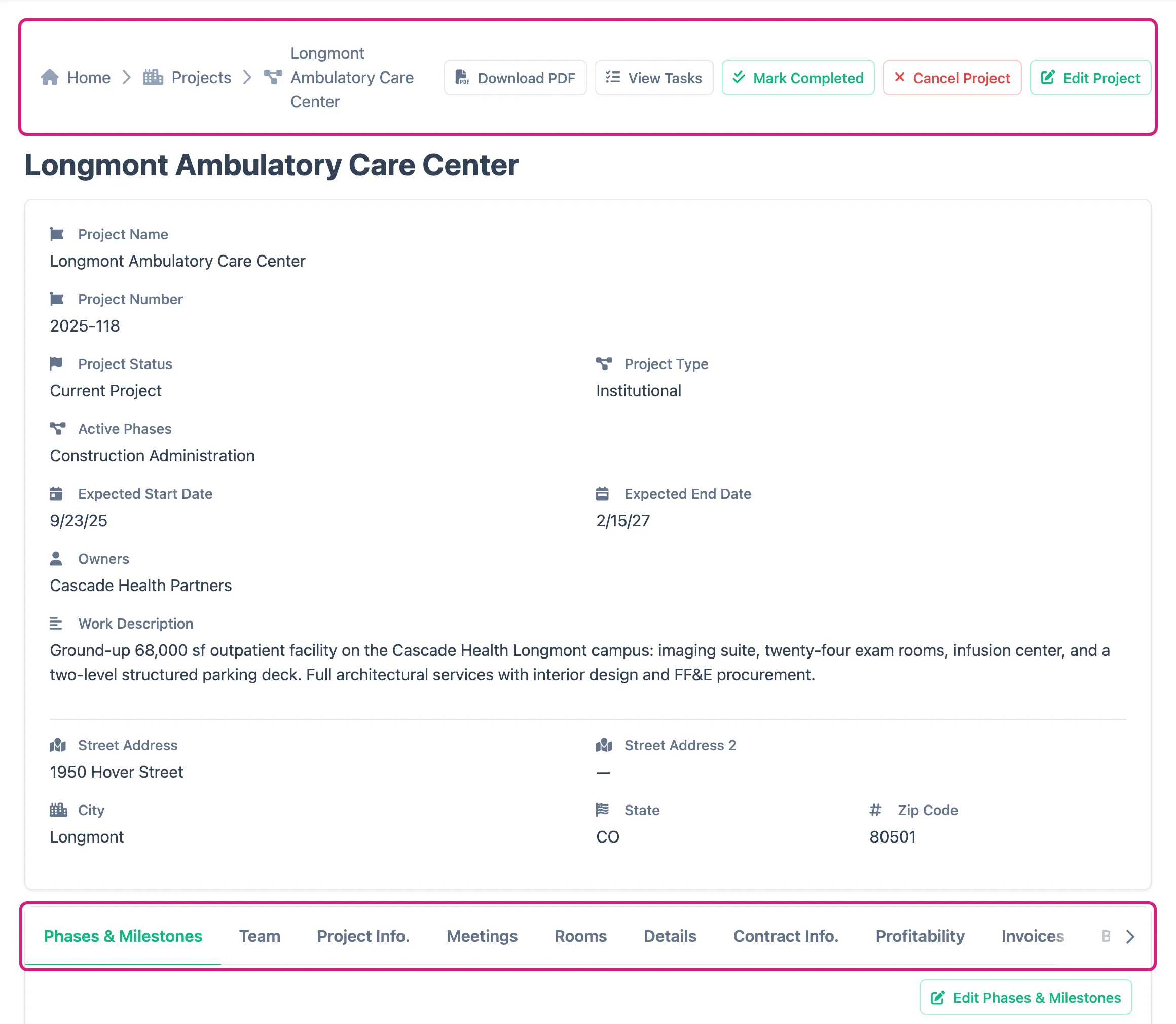
The buttons at the top of the page sit above the tabs — including Download PDF and View Tasks.
| Tab | What’s here |
|---|---|
| Phases & Milestones | The project’s phases, their milestones, deliverables, and statuses |
| Team | Everyone attached to the project, in collapsible sections: team members, consulting firms, contractors, and vendors |
| Project Info. | Detailed project fields |
| Meetings | Meetings recorded against this project |
| Rooms | The rooms and spaces this project is broken down into, each with its FF&E schedule |
| Details | The construction details this project draws, each with the number it carries on the drawing set |
| Contract Info. | Fee structure, scope, and contract details (requires financial access) |
| Profitability | The project’s money picture: invoiced amount less credits, costs split into bills (less vendor credits) and logged labor, and the resulting margin (requires financial access) |
| Invoices | Invoices billed on this project, with the outstanding balance at a glance — see Invoices (requires financial access) |
| Bills | Bills charged to this project, with what’s been paid and what’s still outstanding — see Bills (requires financial access) |
| History | A log of every status change and edit — the audit trail |
| Files | Files attached to this project, grouped into categories — see Files & Attachments |
| Gallery | Project photos, laid out four across and grouped by month — see Files & Attachments |
The tabs don’t all fit across the page — use the arrow at the end of the strip to scroll along to the rest.
A project can be broken down into the rooms and spaces it contains — a lobby, a guest suite, unit type A. Each room carries a name and an optional room number, level, and description. Rooms are listed alphabetically by name.
Rooms are managed from the Rooms tab on the project. Each room is a panel that starts collapsed — its header line carries the room name, its number, and how many items are scheduled into it. Click the header to open it. Anyone who can see the project can read the list; adding, editing, and deleting a room needs project management access.
The FF&E schedule
Section titled “The FF&E schedule”Inside each room is its FF&E schedule — the items from your FF&E catalog specified into that room, with a quantity and any notes for that line. Pricing stays in the catalog. See Build a project FF&E schedule for the walkthrough.
An FF&E item scheduled in a project cannot be deleted: the delete is refused and the message names the projects using it. Remove it from those rooms first if it really has to go.
Adding and editing lines needs project management access, and the item picker needs FF&E access.
Details
Section titled “Details”The Details tab lists the construction details this project draws, pulled from your Details library. A detail is drawn once in the library and pointed at from every project that uses it, so the same window head can serve a dozen jobs without being redrawn.
What the project adds is the detail number — what that detail is called on this project’s sheets, such as A5.01/3. Numbers are unique within a project: two details on the same job cannot share one, and the same detail cannot be added to a job twice. A different project numbers its set independently.
Each detail shows as a card with its drawing, its number, its name, and any notes for this project. Cards are ordered by number. See Add details to a project for the walkthrough.
A detail used on any project cannot be deleted from the library: the delete is refused and the message names the projects using it. Take it off those projects first, or set it to Archived instead.
Anyone who can see the project can read the list; adding, editing, and removing details needs project management access, and the library picker needs Details access.
Phases
Section titled “Phases”Projects are structured into phases — for example, Schematic Design, Design Development, or Construction Documents. Each phase has its own status (Not Started, In Progress, Completed, Stalled, On Hold, or Cancelled) and contains milestones and deliverables.
Phases start collapsed — click one to expand it. Inside, a Phase Tasks line shows how many tasks are attached to that phase, with a View Tasks button that opens the Tasks page filtered to just that phase’s work.
List and Timeline views
Section titled “List and Timeline views”The List and Timeline buttons at the top of the tab switch how the schedule is shown.
List is the view described above: every phase as an expandable panel with its full detail.
Timeline draws the same phases as a Gantt chart, one bar per phase with each of its milestones on its own line underneath. A solid bar is what actually happened, coloured by the phase’s status, and a phase that has started but not finished runs its bar up to today so you can see how far along it is. Where the real dates differ from the plan, the planned dates are drawn as an outline behind the bar, so a phase that started late or is running long shows the gap at a glance. Anything with a single date rather than a span — usually a milestone — appears as a diamond instead of a bar. A dashed Today line runs down the chart, and the keys underneath name every status on screen. Hover any bar or diamond for its status, its planned and actual dates, and how many days it covers.
Phases and milestones without any dates set still get a row, just nothing drawn on it. If nothing in the project has dates yet, the Timeline says so instead of showing an empty chart.
Project tasks
Section titled “Project tasks”The project page has no tasks tab. Instead, a View Tasks button at the top of the page opens the Tasks page filtered to that project, where you get the full set of sorting and filtering tools. Individual phases have their own View Tasks button — see Phases above.
Both buttons show tasks in every status, not just open ones, and include tasks assigned to anyone. What you actually see still depends on your permissions: without permission to view all tasks, the list is limited to tasks assigned to you.
Contract and PDF
Section titled “Contract and PDF”The Contract Info. tab holds fee structure, professional rates, scope of work, and contract details. This tab is only visible to users with financial access. The Download PDF button for the project contract sits at the top of the page rather than inside this tab, and is available to anyone who can manage projects.
History
Section titled “History”The History tab shows a full audit trail: who changed what and when. Use this to track how a project evolved over time.
Related pages
Section titled “Related pages”- Fees, rates, and invoice lines
- A project’s margin looks wrong
- Proposals
- Create a proposal
- Convert a proposal to a project
- Activate and complete a project
- Build phases, milestones, and deliverables
- Manage the project team
- Build a project FF&E schedule
- Add details to a project
- Details
- View project history
- Invoices
- Bills
- Files & Attachments
- Upload and organize files